
Before you start
You'll need access to your domain's registrar account — the site where you originally registered the domain, not Intellihost. If you're not sure who that is, get in touch and we'll help you check.
Steps
- Log in to your registrar's control panel.
- Find the Nameservers or DNS section — it's usually under domain settings.
- Replace the existing nameservers with the ones we'll give you.
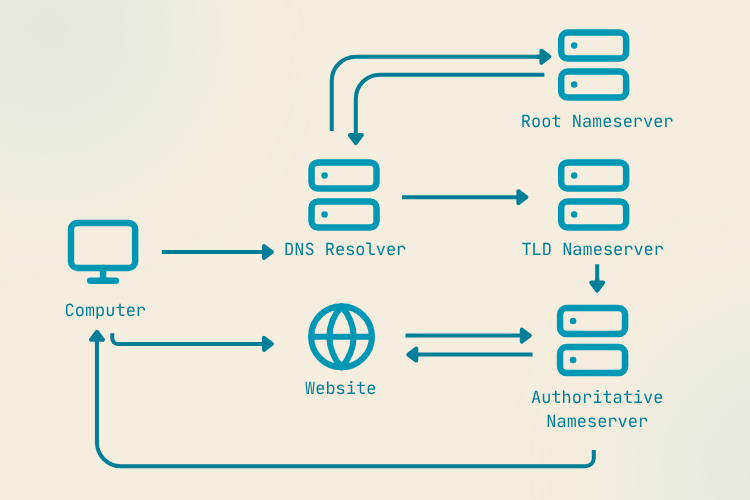
- Save, and wait — changes can take anywhere from a few minutes to 24 hours to spread globally.
Propagation isn't instant everywhere at once. If a site loads for you but not for a colleague, that's normal in the first few hours.
After the change
Once it's propagated, your site and email should route through our infrastructure automatically. If email stops working after a nameserver change, check that your MX records came across — this is the most common thing people miss.
Still stuck? We'll sort you out.
Send us a message