
What is POP email address?
A POP email address is an email account that uses the Post Office Protocol (POP) to receive messages. With POP, emails are downloaded from the mail server to your device and are usually deleted from the server afterward. This means:
- You can read your emails offline.
- Emails are stored locally on your device.
- It is best suited for use on a single device, since emails do not sync across multiple devices
To Begin:
- Open the Start Menu and search for Control Panel
- In the Control Panel, search for Mail
- Click on Mail (Microsoft Outlook).
- Select Email Accounts, below image will appear
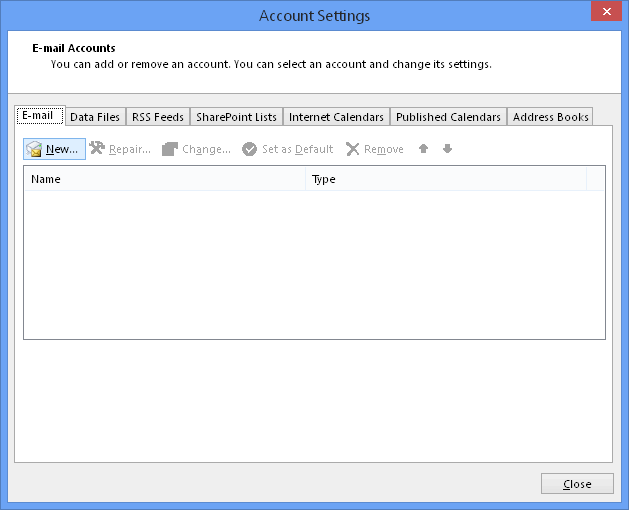
Begin Email Account Setup
- In the Email Accounts window: Click New
- Select Manual setup or additional server types, click Next
- Select POP or IMAP , Click Next to proceed.
Enter Email Account Information
- The next step will have the block as shown below
- Have the details ready for you to copy and paste, check for spaces as it is very case sensitive
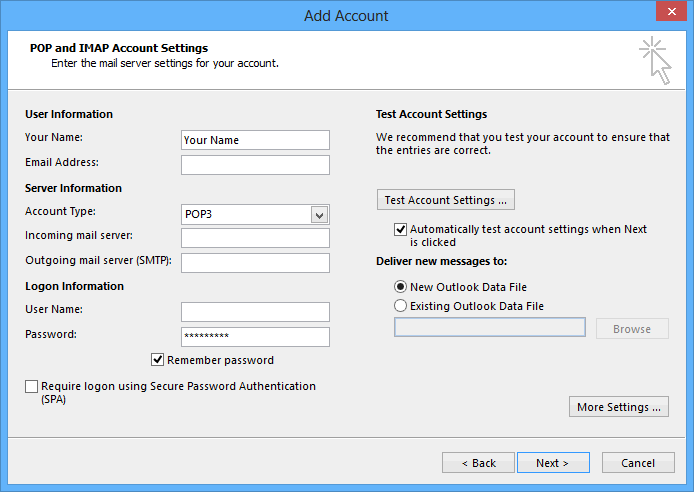
- Your name – Enter the name you want to appear on outgoing emails
- Email address – Full email address
- Account Type – Select POP
- Incoming mail server – mail.(domain name)
- Outgoing mail server – mail.(domain name)
- Username – email address
- Password – the password
- Click More Settings to configure
Configure the email Settings
- Go to the Outgoing Server tab and tick My outgoing server (SMTP) requires authentication.
- Go to the Advanced tab and tick This server requires an encrypted connection (SSL/TLS) for the incoming server
- Set the Incoming server port to 995 (you can click Use Defaults)
- Set the Outgoing server port to 587 (From the encryption drop-down, select Auto) OR 465 SSL/TLS
- Select OK and select Next
Test and Finalize the Setup
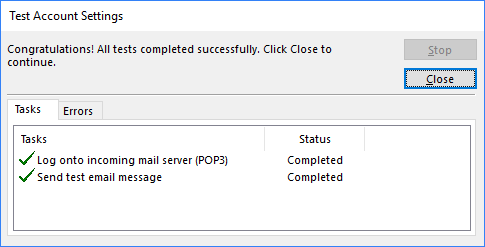
- Once the below confirmation screen appears, it indicates that the email settings have been successfully configured.
- Click Close on all open tabs or windows to complete the setup process
- Launch Outlook and click on New Email
- Send a test message
- Wait for a reply to confirm that the email was successfully delivered to an external server.