
IMAP email address description:
An IMAP email address refers to an email account configured to use the Internet Message Access Protocol (IMAP). IMAP allows users to access and manage their emails directly on the mail server from multiple devices, keeping messages synchronized across all of them. It’s ideal for users who check their email from different locations or devices.
Follow these steps to setup the Email address
- Open the Start Menu and search for Control Panel
- In the Control Panel, search for Mail
- Click on Mail (Microsoft Outlook)
- Select Email Accounts, the following screen will appear, showing your configured email accounts.
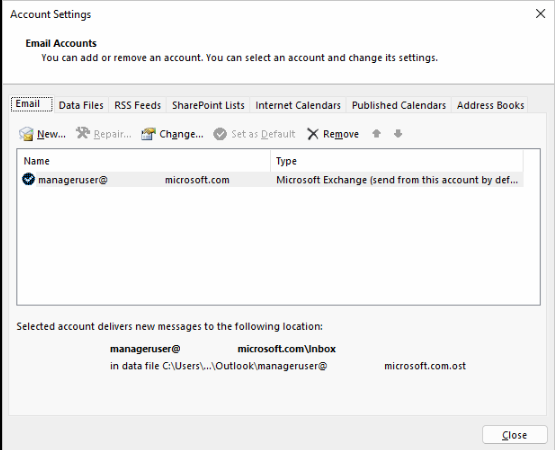
Initiate Email Account Configuration
- In the Email Accounts window: Click New
- Select Manual setup or additional server types, click Next
- Select IMAP, Click Next to proceed.
Add Email Account Information
Have your details ready for you to copy and paste, check for spaces as it is very case sensitive 🙂
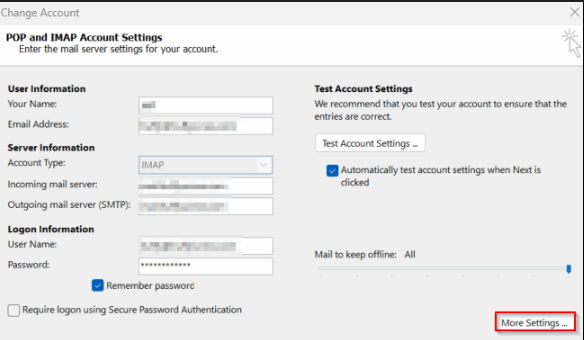
- Your name – Display name for outgoing emails
- Email address – Full email address
- Account Type – Select IMAP
- Incoming mail server – mail.(domain name)
- Outgoing mail server – mail.(domain name)
- Username – email address
- Password – the password
- Click More Settings to configure
Configure the email Settings
- Go to the Outgoing Server tab and tick My outgoing server (SMTP) requires authentication.
- Go to the Advanced tab and tick This server requires an encrypted connection (SSL/TLS) for the incoming server
- Set the Incoming server port to 993 (you can click Use Defaults)
- Set the Outgoing server port to 587 (From the encryption drop-down, select Auto)
Verify and Finalize the Setup
Once the confirmation block appears, it indicates that the email settings have been successfully configured.
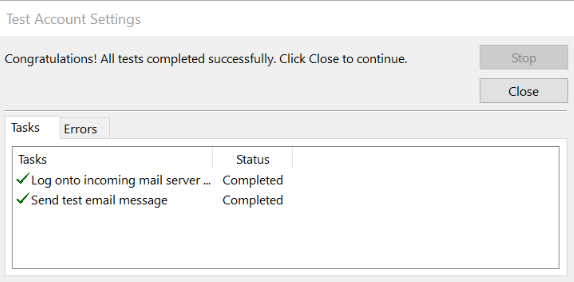
- Open Outlook, click on “New Email”, and send a test message
- Wait for a reply to confirm that the email was successfully delivered to an external server.