How to optimize your WordPress based website with Litespeed, Redis and your free Intellihost CDN powered by Cloudflare
With the launch of our new cPanel fleets, all servers will be upgraded to a new webserver stack, giving you enterprise performance and caching to run just about any WordPress website and e-commerce solution.
Litespeed (https://www.litespeedtech.com) is the world’s fastest web server, giving you unbelievable fast caching and PHP performance. It also integrates directly with Cloudflare as a CDN and has Redis support to ensure you can cache objects at WordPress level, further reducing your performance footprint whilst development ensuring less resource requirements.
Pre-requisites
To enable the above stack, there are some pre-requisites that are needed to ensure your website is compliant and will work with the above stack:
- Only works on www record – Due to the nature of our DNS cluster and the underlying Cloudflare CDN, we only offer the CDN service for websites running on www. As example, if your domain is business.co.za, we only offer the CDN on websites on https://www.business.co.za, not on https://business.co.za – If your website is currently running on the root record, you will need to perform some website updates (see details below) to move your website to https://www.business.co.za
- Updated WordPress: For best results, it’s imperative that you run WordPress version 6.8 or later, and ensuring you’re using PHP8+
- No other caching plugin: Before performing the updates below, ensuring you have disabled and removed all other caching plugins from WordPress (including WP Fastest Cache, W3Total Cache or any other caching plugin you may have installed). Litespeed webserver has it’s own caching plugin which can be installed within WordPress, and will handle all of the caching integration, including Redis and the Cloudflare link)
Quick Steps (for experienced developers)
For experienced developers, the following is a quick start / setup:
CDN Setup

Ensure your website is running on your www record (only applicable for websites that are not running on the www record) – This will involve 5 steps:
- Make a database backup first! Changes made below will make changes to your WordPress database, so it’s crucially important to have a database backup before making these changes. Sign into cPanel > phpMyAdmin > Select your database > click on export and export your database as a SQL file.
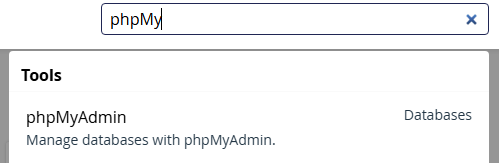
- Within phpMyAdmin > Your database > wp_options table, change your website home_url and site_url to be www (change from https://business.co.za to https://www.business.co.za)
- Add a redirect within cPanel to redirect https://business.co.za to https://www.business.co.za – This will ensure even if someone lands on the non-www record, they will automatically be redirected to the www version that is behind our Cloudflare powered CDN
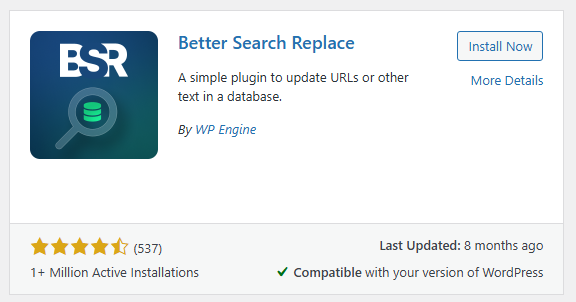
- Better Search and Replace: At this point, your website will likely be broken in some cases as you may have a number of fixed links to the non-www record. Login into WordPress admin and install Better Search and Replace. This plugin will allow you to search for all database records and replace them with another record. In your case, you can search for your domain for example https://business.co.za and set replace as https://www.business.co.za – ALWAYS DO A DRY RUN FIRST – Once the dryrun is complete, you can run another search replace but untick Dry Run, this will make all of the changes as you need
- Lastly, if you use Elementor or your theme caches theme files or styles, you may need to reset these. For WordPress > Elementor > Tools > Rebuild styles/clear files & data
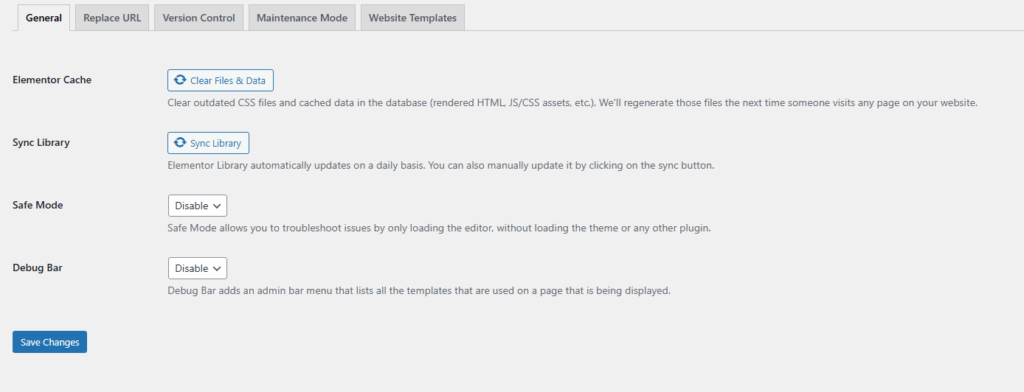
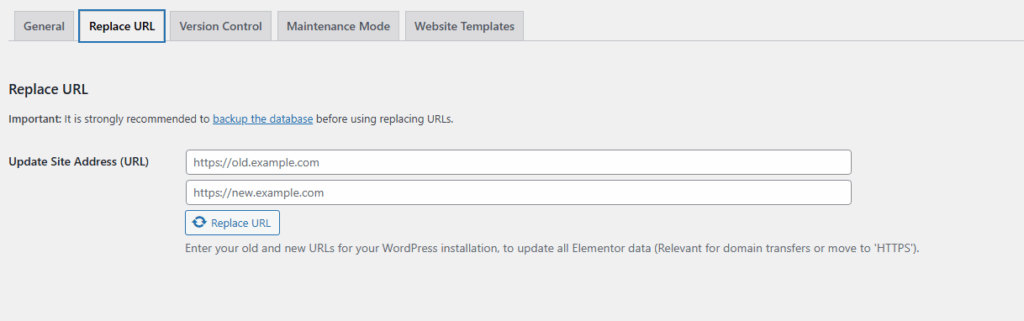
Replace remaining Elementor URLs from domain.co.za to www.domain.co.za
- Test your website to see if any visual issues occur, and you may need to manually change these in your content.
*If you use licenses for plugins, e.g. Elementor, formidable, etc. You will have to update these to the www.business.co.za
IMPORTANT: Please check your email plugin settings. It is likely the email ‘from’ address will be [email protected] – please change to [email protected] for the emails to work again
Once these steps have been completed, your website will now be running behind hundreds of Cloudflare servers around the world, giving you unmatched protection and content delivery globally.
Litespeed

To take full advantage of Litespeed Web Server, take the following steps:
1. Very Important: Uninstall any other caching plugins you have installed within WordPress.
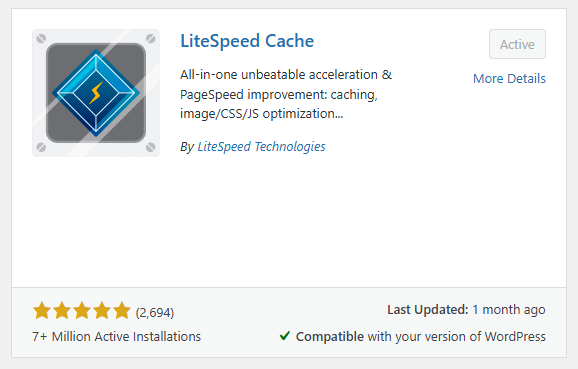
2. Install Litespeed Plugin in WordPress
3. Configure your caching
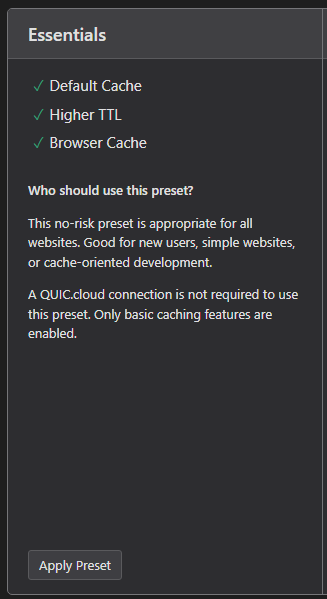
- We recommend using the essential plan
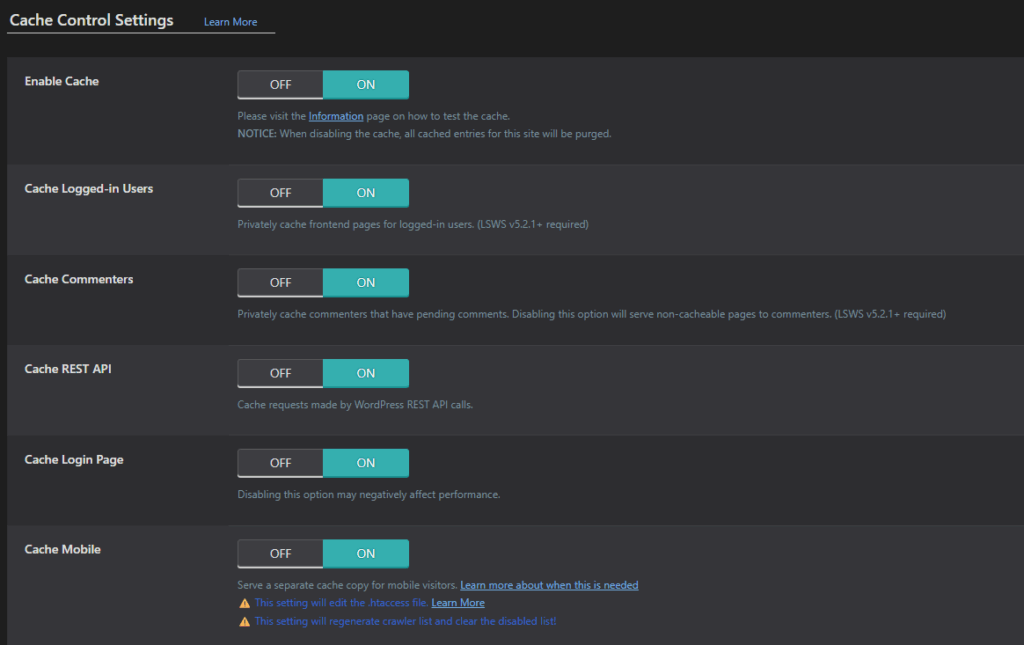
- Make sure all the cache settings are enabled under Cache > Cache Control Settings > Turn On
- Set the “Excludes” – Ensure wp-admin is excluded from caching. This will guarantee that your admin panel is not cached
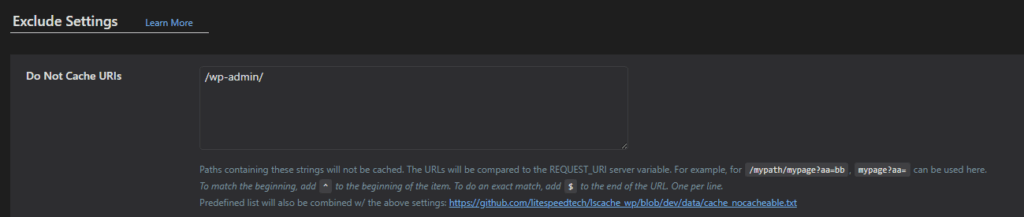
- Set Purge – Purge All On Upgrade to ON

4. Configure the Cloudflare API: Speak to our product support team that will provide you with your unique Cloudflare API token and details. This will allow Litespeed to also clear any Cloudflare caching when you update your website.
Under CDN > Cloudflare
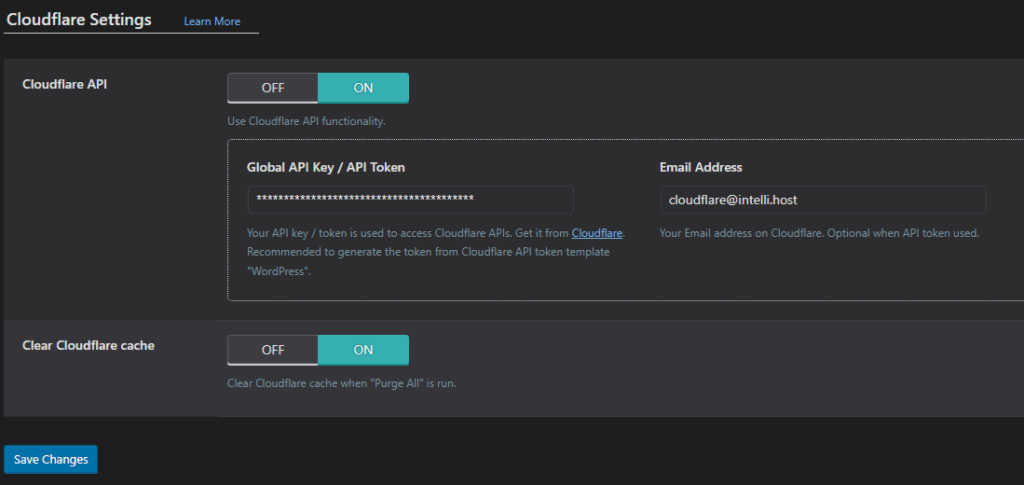
Cloudflare API: ON
Global API Key/API Token: Send a request to Intellihost support for an API token
Email Address: [email protected]
Domain: your domain name
Clear Cloudflare cache: ON
Redis
All cPanel accounts will now have Redis available by default, but you still need to configure Redis within WordPress to take advantage of this feature:
- Sign into WordPress
- Litespeed Plugin
- Caching
- Object Caching
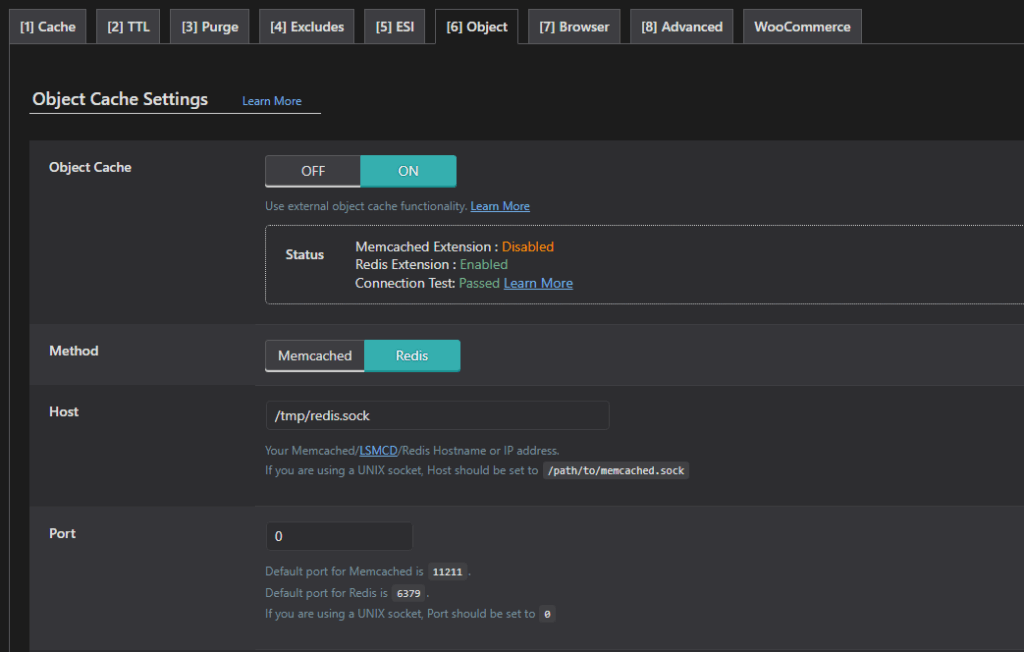
- Configure and test
Redis Configuration
Object Cache: ON
Method: Redis
Host: /tmp/redis.sock
Port: 0
How to check if caching is working?
Cache Hit: When you visit a site and the requested resource (webpage, image, etc.) is already stored in a cache (like your browser cache, a CDN, or a proxy server), it is delivered from the cache rather than fetched again from the original server. This saves time and bandwidth.
Cache Miss: If the resource is not present in the cache, the browser or intermediate server fetches it from the origin server and usually stores it in the cache for next time.
How to check:
1. Open Developer Tools
- Google Chrome / Edge / Firefox: Press
F12orCtrl+Shift+Ior right-click and selectInspect.
2. Go to the “Network” Tab
- Click on the “Network” tab within the Developer Tools panel.

3. Load or Reload the Page
- Refresh the website (press
F5orCtrl+R). The network panel will fill up with resource requests.
4. Select a Resource
- Click on the first resource (usually the page itself) or any resource (like an image, JS or CSS file) you want to inspect. E.g. www.intelli.host
5. Look at the HTTP Headers
- With the resource selected, go to the “Headers” section. Look for response headers.
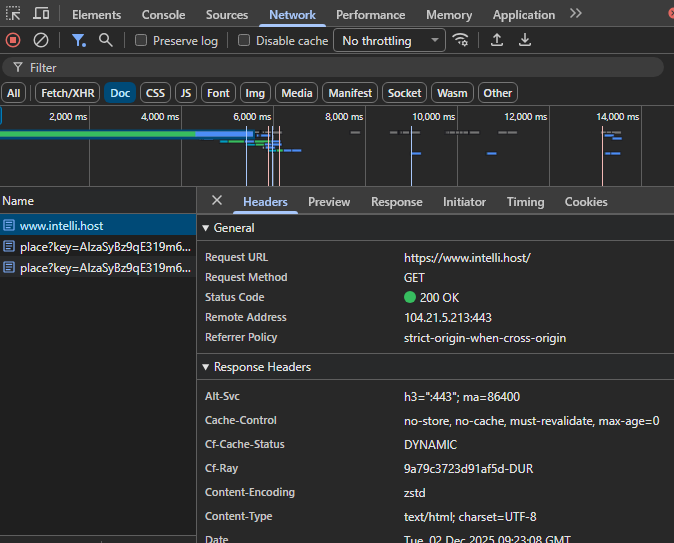
6. Check for Cache-Related Headers
The most common headers indicating hit/miss are:
Cf-Cache-Status: HIT/MISS
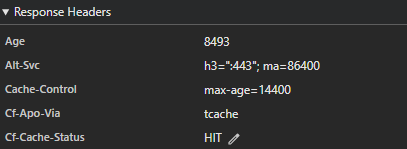
Server: This will show you where the request is going to – Cloudflare

Litespeed response might look like this:

Security for your WordPress Site
What is 2FA? Two-factor authentication (2FA) adds an extra layer of security to your WordPress website by requiring a second form of verification in addition to your username and password when logging in.
This typically takes the form of a one-time code generated by an authenticator app or sent to your device.
Why do you need 2FA? Even if a password is compromised, 2FA helps prevent unauthorised access by ensuring that only verified users can log in. We strongly recommend enabling 2FA for all WordPress administrator accounts, as it significantly reduces the risk of brute-force attacks, credential theft, and account takeovers, helping to keep your website and data secure.